LeggNets Digital Capture

Thursday, August 14, 2008

Create Friendly Backgrounds with a Wide Aperture


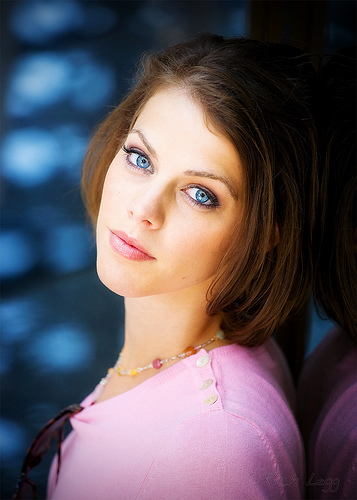
One of the easiest tips I give beginning photographers that are looking to improve the look of their portrait shots is to shoot at the widest possible aperture. This means the lowest f/ number on the lens. In doing so, what could be a boring or distracting background translates into a nice smooth surface helping to accentuate the subject.

For today's example image, I photographed Brenda on the streets of Seattle during last weekend's shoot. I spotted a surface with a great blue reflection that would help enhance Brenda's eyes. By shooting wide open (f/4 in this case), I was able to smooth the harsh circles in the background into an interesting design. Using a long focal length lens helped to further add to the effect.

When shooting outdoors using reflector lighting (like in today's image), I set my camera on AV (Aperture Value) Auto mode and leave the lens aperture wide open. Doing this lets the camera determine the appropriate shutter speed and frees me up to concentrate on composition.

Canon 5D, Canon 70-200 f/4L lens - 1/100 second, f/4, ISO 200

Labels: ,

Friday, August 01, 2008

Creating a photo with a pure white background


Love it or hate it, a popular style of shooting in stock photography is the photographing of models or objects against a pure white background. By pure white I mean a background with absolutely NO detail, RBG values of 255,255,255 - Nothing!

There are an abundance of ways to create this look from simply cutting out the subject in Photoshop to doing it entirely 'in camera'. I prefer to go for the latter method.

For today's featured image of Michelle holding a weight, I relied on a studio setup to create the majority of the 'pure white background' in camera and then finished off the look in post-processing. To setup the shot, I placed two monolights shooting through white umbrellas onto the background of white seamless paper.

Picture 8

I set the monolights so that the exposure on the background was in the range between f/11 and f/16. For me, using lights of different power it took a small bit of adjustment to get it right.

The next step was to place Michelle in front of the white background at a distance that would give a nice rimlight from the background reflection but not overpower her. Since this photo was for a stock purpose I allowed the light to reflect a bit aggressively onto the left side of her face. Had this been for a portrait, I would have adjusted differently to eliminate this.

I lit Michelle with a combination of a large softbox and a reflector. The exposure metering for her was f/8. This is what I set my camera on. By doing so, I had a background that was sufficiently over-exposed but not so much that it caused excessive blow-back which can lead to problems like lens flare, blown edges and such.

In post-processing, I shoot RAW so the first step is to convert the RAW file in AdobeCameraRaw (ACR). My default setting in ACR is to show pure white highlights as red and pure black lowlights as blue. As can be seen in the screenshot, my shot came close to having a pure white background with very little adjustment.

Picture 4

Now, with the majority of the work done, I open the image to complete editing in Photoshop. I know from what I saw in ACR that I will have a few areas to clean up to guarantee a pure white background.

After opening the image in Photoshop, the first thing I do is create a temporary Brightness/Contrast adjustment layer and pull the brightness slider all the way to the left. What this does is show me the areas that I have to finish cleaning up to get the desired white background. Any area that is not absolute white (255,255,255) will be immediately apparent.

Picture 6

To clean up these areas, I will use one of a couple methods. If it is an easy spot in a corner or two, I will simply create a new layer and paint the area(s) white. If it requires a bit more finesse because it's around the model (like this image), I will use a levels adjustment layer along with some vector masking. Once I get the background how I want it, I then delete the temporary Brightness/Contrast adjustment layer that I created.

After creating my white background, I then go on to complete my processing including other steps like facial retouching, whitening eyes and teeth, sharpening, etc.

As you can see by this example, the easiest way to create the background and my preferred method is to do as much as possible in camera. In doing so, the Photoshop work required for a series of images is minimized and this dramatically drops the time needed sitting in front of the Mac.

Canon 5D, Canon 24-105 f/4L lens - 1/160 second, f/8, ISO 100

Labels: , ,

Thursday, July 24, 2008

Photographing for stock with the end user in mind


When I plan a stock photo shoot, I always think about how designers/advertisers/editors can use the images I create in their work. Chances are, if I can't think of multiple uses for an image then it won't end up selling very well. This is sometimes hard to come to grips with. Early on in my stock shooting, I had some pretty artsy shots that I really liked and thought would be big sellers. To my surprise and disappointment, many of these images ended up not selling at all.

Today's image is an example of shooting with the end use in mind. Since the passing and implementation of California's new cellphone usage law on July 1st (link), I figured that there would be a need for fresh images portraying cellphone use while driving. With this in mind, I took one of my models to an empty parking lot earlier this month and photographed several scenes of her using a cellphone while driving.

In this case it worked. This morning I awoke to find one of my preset Google Alerts had located multiple uses of my image of a driver texting. The Christian Science Monitor provides content for television station websites throughout the country and for their story on texting-while-driving they purchased this image from my iStockphoto portfolio.

As John "Hannibal" Smith said, "I love it when a plan comes together".

Labels: , ,

Monday, July 21, 2008

Cross Lighting In Studio


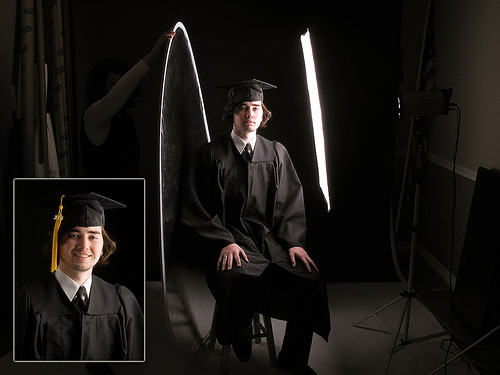
I spent some time yesterday with a couple young men in the studio. My goal going in was to shoot them with serious expressions against a dark background.

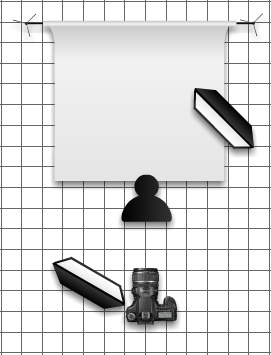
In today's image of Ryan taken during the session, I used a cross lighting type setup (diagram below). The arrangement consisted of a of a softbox camera left lighting the model's right side and a second softbox on the opposite side of the model lighting his back and left side.

Picture 6

I like the results achieved. If I were to do the shoot again, I would lower the power on the back light a small amount. Even though the detail was retained on the side of Ryan's face in the original image, I lost detail and blew out the highlights a bit in processing.
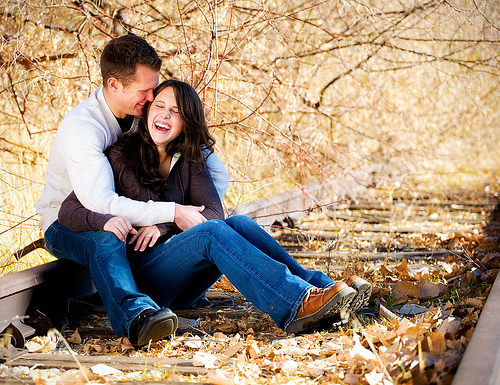
Canon 5D, Canon 24-105 f/4L lens - 1/160 second, f/4.5, ISO 100

Labels: ,

Friday, June 27, 2008

Stock Photos: Part of a Bigger Picture


One hurdle that photographers often encounter when selling stock photos is that (in many cases) their image will become part of a bigger project. Unlike portrait and fine-art photography where the photographer creates a final product, stock photos are frequently incorporated into a larger design.

One change I had to make to my workflow was to minimize the post-processing I did on images that would be included in my stock portfolios. Initially this was difficult, since I felt the images needed a bit more punch. I am now comfortable with the process and always think about the "bigger design picture" when processing my stock images.

Todays image is a perfect example of this. Designer John Kicksee uses stock images in his designs of book covers. For the cover of Aces High, John incorporated my image of a crime scene victim into the design.

Doorway Victim

When looking at the original image, you can see the vast amount of changes he made to it for inclusion into the final piece. In addition to a crop and horizontal flip, John took a lot of effort to transform the photo into pseudo-artwork. The final product is incredibly better than it would have been if he had used my photo un-edited.
This is just one more thing to consider when shooting, editing and ultimately selling stock photos.

Labels: , ,

Tuesday, June 17, 2008

Brittanie in Black & White


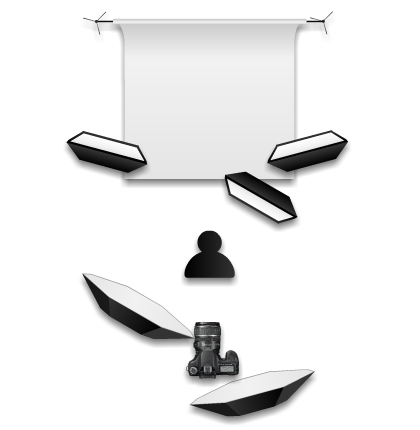
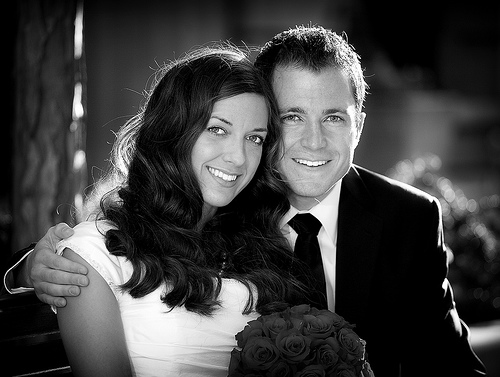
During last week's stock photo shoot with Brittanie I took a small detour and captured a few portraits for non-stock use. This is one of the images. In this shot, I wanted to shoot her in a non-classical type of pose. The goal was to have everything but her skin blend into the background. Here is a diagram of the two-light setup used.
Brittanie B&W Setup

What this diagram doesn't show is the large gobo between the key light (on the right) and the background used to eliminate light spill. Additionally, I placed a 3x4' piece of black acrylic in front of Brittanie to use as a table and to add a subtle reflection to the bottom of the shot.

I'm pleased with the result, especially the lighting on her face which converted very nicely into black & white. If I were to shoot this again, I would use one additional light as a low-power hairlight to add a slight bit of separation between her shoulders and the background.

Canon 5D, Canon 24-105 f/4L lens - 1/125 second, f/4.5, ISO 100

Labels: ,

Wednesday, June 04, 2008

Using a Slow Shutter Speed for Effect


Back when I first began using an SLR camera, one of the first rules that I learned was to maintain a fast enough shutter speed to eliminate blur when shooting handheld. The formula that my high school photography teacher (Mr. Cresop, I wonder where he is now) taught was to use the lens focal length to determine the shutter speed (for example, for a 50mm lens the minimum shutter speed would be 1/50 second). This advice is still good to use today. Even with things like image stabilization, a fast shutter speed equates a sharper image.

On occasion though, a longer shutter speed can add an interesting blur to the image. In today's image, my friend Kenneth Linge borrowed my camera to demonstrate this recently in downtown Salt Lake City. He had the model stand very still while photographing her as a couple guys walked past. The relatively long shutter speed of 1/10 second gave a nice motion blur to the onlookers. By bracing himself on a lamp pole, he was able to minimize the camera movement and keep the model acceptably sharp.

This is another example of when breaking the "rules" of photography can work in the photographer's favor.

Canon 5D, Canon 24-105 f/4L lens - 1/10 second, f/25, ISO 160

Labels: ,

Monday, June 02, 2008

Traveling Light: My 2 Speedlight Portrait Setup


I have recently added a second speedlight to my out-of-the-studio kit with the plan of being able to travel a bit lighter and more efficient. In the past I would bring along a monoilght for off-camera lighting at events, but now the second speedlight negates that need.

Today's portrait of Pastor Steve at last weekend's wedding shoot was captured with this two-speedlight setup. I had a Canon 580EXII on my camera with a 430EX on a lightstand with an umbrella to the right. The two strobes communicated with each other via IR. I set the on-camera strobe at -2/3 f/stop to serve as a fill light and set the off-camera strobe at +1/3 f/stop to be my main light. I then put my camera on manual with an exposure of 1/60 second at f/5.6. The TTL (through-the-lens) function of the speedlights managed their power output.

As you can see from the image, this setup worked well. The biggest advantage over using a monolight was that I didn't have to re-meter anytime I moved the off-camera light. The TTL adjusted the power output to my exposure. I could move the off-camera light back for larger groups and in for individuals without worrying about exposure changes. And, unlike my monolights, I was able to operate cord-free since the lights are battery powered.

Even though this setup works well, I think that in the future I will add one more Speedlight to add even more versatility.

Canon 5D, Canon 24-105 f/4L lens - 1/60 second, f/5.6, ISO 100

Labels: , ,

Thursday, April 10, 2008

I Dream In Color (guest post by Jeremy Hall)


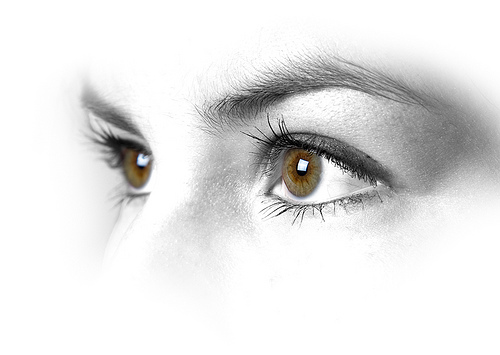
Today's image was created by Jeremy Hall. Jeremy is a friend of mine that I met through Photowalking Utah. I saw this image on Jeremy's Flickr photostream and asked him to write about how he created it.

By Jeremy Hall

I have some great friends and co-workers that step in as my models when I have ideas for new shoots. Good people. Kattie is a beautiful girl working in our customer service department that has very photogenic eyes and an appreciation for taking good photos. I have had in my mind some ideas for taking a series of photos of just eyes or tightly composed face shots, and she was willing to be my first victim.

After taking a series of shots, angles and lighting adjustments I went to work in Lightroom seeing what I had to work with. Lately I have been spending a lot of time trying to learn new development techniques in Photoshop, so when I take photos I tend to view them as a canvas ready to be brought to life. This is not to say I don’t try to get a perfect image out of the camera without processing, but the processing has been my interest of late. There is so much to learn and evolve in photography that I love!

One thing I especially enjoy about photography is the willingness of most other photogs to share their knowledge. Sure, there are some “secret sauce” business things that tend to stay protected; but when it comes to creating beautiful art, most are willing to help along those of us earlier in the learning process. With that in mind, I am always happy to share what I know to help others learn like I am.

Here are some notes of what I did with this image:

1. Shot normally with single soft box and model facing light at slight angle

2. Slightly underexposed in Lightroom to maintain shadow detail.

3. Photoshop channel mix layer for high key b&w conversion with selective mask to avoid eyes. For the b&w I just play with the sliders until I achieve the look I am going for that best enhances the photo.

4. Same eye selection (control/cmd click the previous adjustment layer thumbnail to reselect) for saturation and curves

5. Several dodge & burn layers for enhanced high key and knocking out aspect of background and face I didn't want.

That’s really it. I did a crop based on how I wanted to display the image and some additional selective sharpening once the image was downsized. My preferred technique for a final sharpening is to create a duplicate of the background layer, apply the sharpening that best fits the important areas of the image, then apply a layer mask to hide all of the sharpening and then paint back on with a soft brush where I want the sharpening applied.

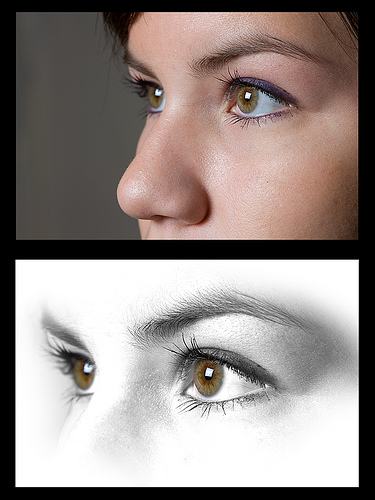
For comparison I have created this before and after image.


Thanks for the invite on the guest post, and I always appreciate visitors and comments over on my site at www.whatsgottastay.com and on my Flickr stream!

Labels: ,

Saturday, March 08, 2008

Setting the Background in Stock Photography


One of the most enjoyable times for me to photograph is when I am doing a stock shoot on location. I like the challenge provided by setting up a realistic looking scene in a new place. An important item to remember when setting up a scene is not only to focus on the main subject, but plan the background as well.

In today's shot of Holly at the health club, I placed Tyler in the background doing curls with a dumbbell to better communicate the theme. Combining this model placement and a shallow depth-of-field not only adds depth to the image but increases the 'realism' of the shot.

Another example of this technique is demonstrated in last month's laboratory photo shoot. By placing models Ron and Julie working on the bench behind Michelle, the scene becomes more interesting.

In the Lab

One drawback to adding background people is a bit of complication to the lighting. In the health club shoot I set a low-power monolight aimed specifically at the background model(s). I set the exposure for this light at approximately half f/stop below the subject exposure. I wanted them to pop, but not overpower the main subject.

This technique can be utilized in recreational photography as well. By paying attention to the background and either adding or removing people, the impact of a shot can be greatly increased.


View these images in my stock portfolio: Health Club - Laboratory

Labels: , ,

Wednesday, March 05, 2008

Muted Color


One effect that I use occasionally on portraits is Muted Color. This treatment can help to give an antique feel to the image similar to sepia-tone while still retaining color.

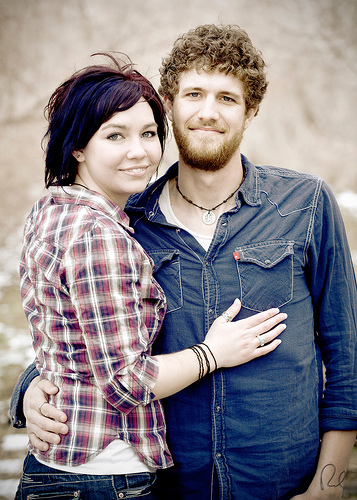
The young couple in today's image wanted an old-fashioned look to their engagement photos. Their initial thought was to go with black & white or sepia-tone. However, upon seeing the muted color version it immediately became their favorite.

There are several methods available to create this look. The method I use is simple and straightforward. I process the original RAW image in three ways: color, sepia-tone and cross-processed (I use Linge's Photoshop Actions for the sepia and cross-processed effect). I then create a Photoshop layer of each version of the file. Once I have the three layers, I use the color layer as my base and blend the other two layers over it, adjusting the transparency until I get my desired result.

If you have a process you use to create a similar effect, please share it.

Canon 5D, Canon 70-200 f/4L lens - 1/200 second, f/4, ISO 100

Labels: ,

Friday, February 29, 2008

Rule of Thirds - Revisited


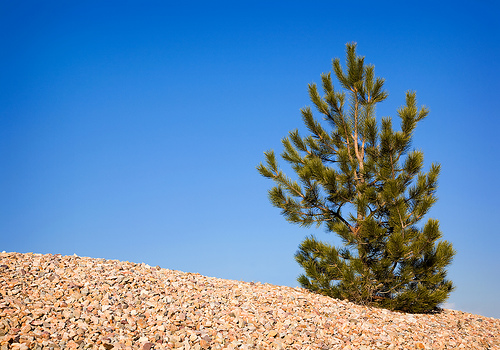
Today's simple scenery image of a lone pine tree against a blue sky is a perfect chance to revisit a previous post from last year concerning the Rule of Thirds. Have a great weekend!

Canon 5D, Canon 24-105 f/4L lens - 1/200 second, f/8, ISO 100


from April 1, 2007:

One of the first things to get emphasized to novice photographers by those who claim to be more knowledgeable is to "Follow the rule of thirds". While this is sound advice, the phrase can be confusing. Let's take a few moments and simplify this "Rule" so that we all can use it when making captures regardless of our experience.

Simply put, the Rule of Thirds is a tool to use when composing a photograph. The way I like to instruct it is this: Place four evenly spaced imaginary lines on your image, 2 horizontal and 2 vertical. I have even further simplified it to some (mainly children) by suggesting that they imagine a "tic-tac-toe" board over the photo. Once you can picture the lines, place your subject very near a line and, if possible, arrange the main focal point of the subject where two of the lines intersect. In doing so, you increase the odds that you will create a photo that is visually appealing to how the human mind interprets the image.

Rule of Thirds

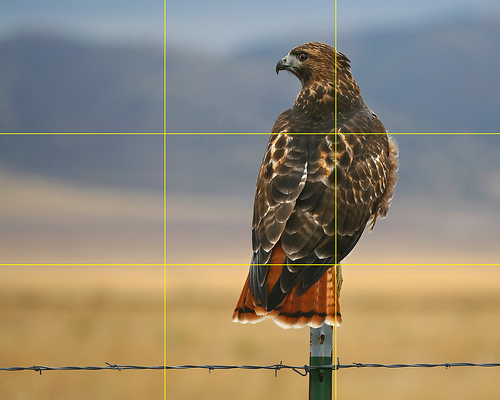
For today's image (above) I took one of my favorite hawk photos and added yellow lines to help illustrate the process. When composing the photo I placed the bird on the right most vertical line. The main focal point of the bird is the eyes and beak, but I found that if I placed them on an intersection the photo was a bit bottom heavy. Instead, I placed the bird's body where the two nearest lines meet. Doing so creates a pleasing composition since the birds head is close enough to an intersection to take advantage of the rule. Had I taken the same photo and composed it differently by placing the bird in the center of the image, the result would not be as pleasing.

Since I'm on the subject of image composition, the image above demonstrates another "Rule" that can be followed to make a shot more pleasing. In most situations it is desired to have the subject looking toward the center of the image. If the bird were looking to the right rather than the left, the photo would not be as pleasing to the viewer's eye. In fact, to many people it would just "feel uncomfortable". The same can be said for motion. If the photo is of a subject in motion, compose it so it is moving toward the image's center.

Lastly, remember the old phrase "Rules are made to be broken". There are plenty of times when a more pleasing image can be created by breaking the Rule of Thirds rather than following it. Try using this rule as a guideline and see if your work improves.

Labels: ,

Friday, February 22, 2008

Photoshop Tip: An Alternative to Brightness/Contrast


When editing my images in Photoshop, I always begin with a couple simple adjustment steps before venturing into the more advanced edits. Since I shoot most of my shots around 1/3 f/stop underexposed (to preserve highlights), the first simple editing step I do is an adjustment to the brightness/contrast of the image. But guess what? I don't use the brightness/contrast adjustment to do this. I use LEVELS.

By using the LEVELS adjustment, I am able to fine tune the brightness of the image while causing very little damage. This is extremely important in my stock images since they have to go through a rigorous inspection process to be included in my portfolio. Here are the simple steps I use:

1. Create a new LEVELS adjust layer.

2. Slide the upper clipping adjustment (red circle below) down until it is just above the upper end of the histogram.

3. Slide the lower clipping adjustment (blue circle below) up until it is just below the lower end of the histogram.

4. Inspect image and fine tune the adjustments as needed


Levels 2

As you can see in today's featured image, the sample on the right 'pops' quite a bit more than the original on the left. This was done strictly using the levels adjustment. Once I complete this step, I then go on and finish my editing of the image.

If you haven't tried adjusting brightness/contrast this way, give it a shot and see how well it works for you.

Canon 5D, Canon 24-105 f/4L lens - 1/160 second, f/4.5, ISO 50

Labels: ,

Thursday, February 14, 2008

50mm f/1.8 lens - Put One In Your Bag


I frequently receive email questions from photographers that have upgraded to a digital SLR camera. One of the most often asked questions is about additional lenses they should add to their kit. The lens I recommend more than any other is the 50mm f/1.8. This lens can be had for under $100 (Canon) and is a great addition to any photographer's gear bag. The inexpensive little lens offers numerous advantages including:

- One to two f/stops faster than a standard 'kit' lens
- Very narrow depth-of-field for a great blurred background
- Extremely compact and lightweight
The Canon version of the lens feels very cheap light due to its plastic build. Don't let this deter you. The optics are very good, especially considering the low price.

Today's image of Kenneth during a video presentation at one of his classes was taken with this lens. The combination of the fast lens speed and a high ISO made the shot possible.

Here are links to the lens for Canon & Nikon:
Canon 50mm f/1.8
Nikon 50mm f/1.8
Of course, if price is no object you can do what my scientist friend did (you know who you are) and cough up some real cash for a Canon 50mm f/1.2 :)

Canon 5D, Canon 50mm f/1.8 lens - 1/20 second, f/1.8, ISO 800

Labels: , ,

Monday, February 04, 2008

Private Jet Photo Shoot


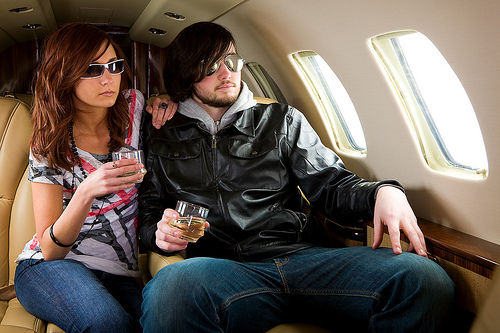
(Rock Star models Andrew and Alyssa)

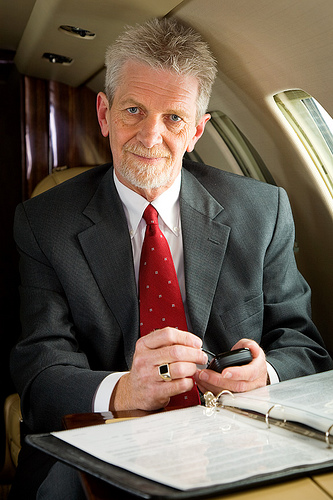
I spent this past Saturday afternoon doing a stock photo shoot in a private jet. Through a friend, I made contact with a pilot last month and he was able to get me access to one of the corporate jets he flies. I must say, it was pretty cool.

I got word on the Thursday prior that we would have use of the jet on Saturday, so I had to scramble to assemble the models and props for the shoot. Normally I like to schedule shoots a few weeks in advance, but due to the irregular schedule of the plane's use this was not possible.

When planning the shoot, the three scenes I sought to capture were corporate executives, young rock stars and wealthy jet-setters. Doing the multiple scenes required several different models. Ultimately, six were available (on the short notice) for the shoot.

Private Jet Photo Shoot
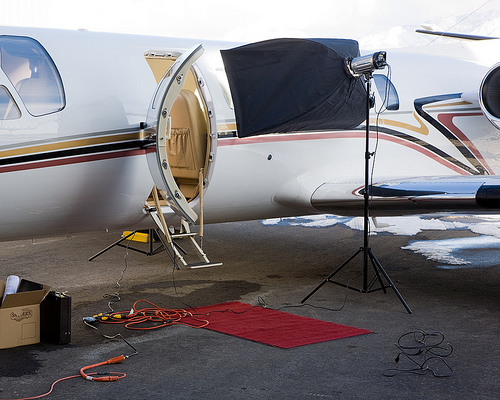
(The lighting setup on the outside of the Cessna Citation)

The lighting for the scene was pretty straightforward. I wanted to create a look that made it appear that the plane was flying. To do so, very bright windows were the key. I placed large softboxes on both sides of the plane to light the windows, then used a small softbox above and behind my camera position for fill light. All of the lights were synced with Pocketwizard radios.

The final result of this lighting setup worked well. The images portray a natural looking directional light similar to what you would see in an airplane at altitude.

Executive
(Corporate executive model Ron)

The biggest hurdle in doing the shoot was the cold weather and wind. The hangar that we used as a staging area was un-heated. Thankfully, Kevin from the airport provided a space heater to keep the models warm between shots. The plane itself was also not heated (it was powered down) and the door had to stay open for the light's power cables.


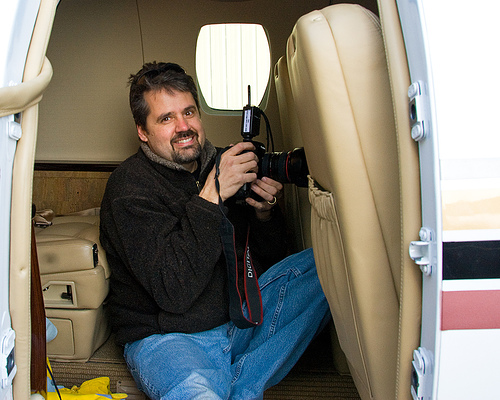
Private Jet Photo Shoot
(Yours truly on the job)

All in all, it was a successful and fun shoot which will yield a few dozen images for my stock portfolio. Big time thanks go out to all of the models (Michelle, Dale, Ron, Andrew, Jenna & Alyssa) and especially to my new pilot friend Matt. Thank you all! Without people like you I could not do what I do.

Labels: ,

Thursday, January 31, 2008

Reflector Lighting in Mid-Day Sun


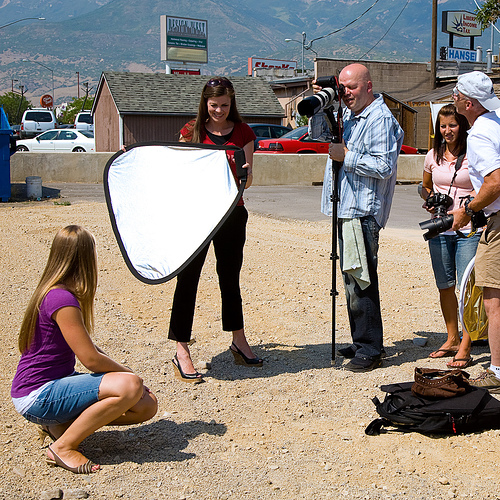
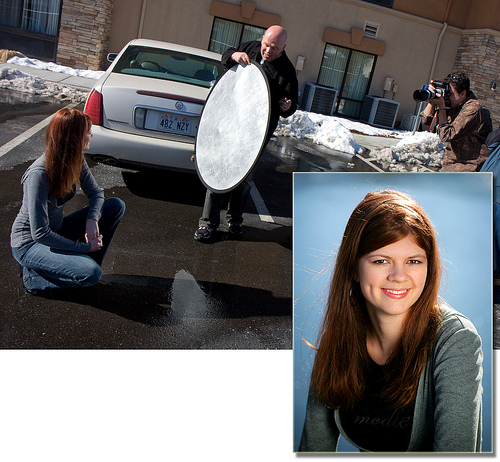
Pro photographer and instructor Kenneth Linge had another of his Photographing People clinics this past Saturday in Salt Lake City. I was privileged enough to be invited again to help out and photograph during the class. Kenneth is a master at using mid-day sunshine with a reflector to create stunning portraits.

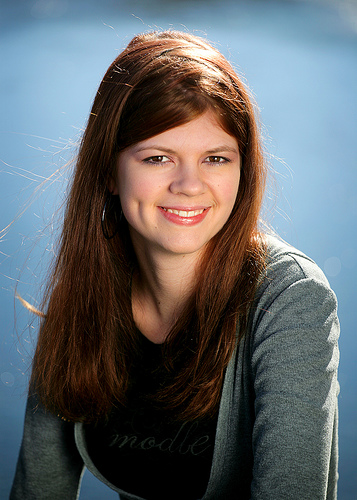
I took the above photo of Lindsey in direct overhead sunshine in the parking lot of the hotel the seminar was held at. The lighting was provided by a single silver reflector positioned by Kenneth. The combination of the warm light on the face with the cool background bokeh created a pleasant portrait.

Here is an overview of the scene as captured by my favorite videographer Jeremy Hall.

Behind the Scenes - Kenneth Linge's class in Salt Lake City

It is always rewarding to be able to capture a nice portrait such as this in an environment that many photographers would consider inhospitable to portrait work.

On a somewhat related side note, I processed this image in under 5 minutes using Kenneth's Photoshop Actions. I will be providing more information on these actions in the near future.

On the web:

Kenneth Linge
Jeremy Hall

Canon 5D, Canon 70-200 f/4L lens - 1/800 second, f/4, ISO 100

Labels: , , ,

Friday, January 18, 2008

Calling Photoshoppers - My Version


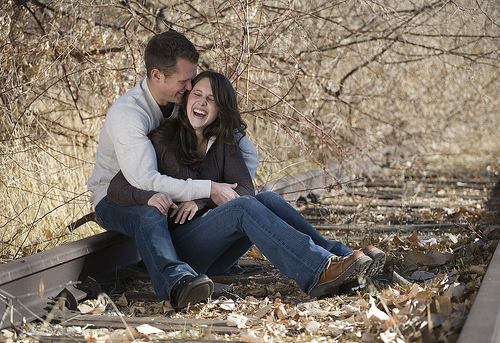
It was great to see the response to the Calling Photoshoppers project we featured this week (original post). I received a few suggestions that I give a shot at editing the image, so I spent a few minutes with it this morning. Here is my version.

I didn't keep a detailed list of my editing steps (like the others did so well), but I will touch on a few highlights.

- Cropped and leveled
- Removed rock (thanks Brian)
- Blended two versions of the images, one sepia and one color
- Warmed up and softened using an action
- Brightened faces
- Vignette

My goal was to create a sepia image with a subtle color on the couple (especially the jeans and her top). Similar to others, I sought to create an old-fashioned feel to the image.

So, how'd I do?

Canon 5D, Canon 70-200 f/4L lens - 1/250 second, f/5, ISO 100

Labels: , ,

Wednesday, January 16, 2008

Calling Photoshoppers - The Results


Last week I put out a call for Photoshop users who would like to put their skills to work on one of my images (original post). I received a very nice response and selected the first five to participate.

I have since received the four edited images (one person was unable to complete the assignment). In addition to doing a great job applying their Photoshop chops to the image, they each wrote a narrative on what they did and why they did it. It is very interesting for me to see the different style and approach each artist took.

Each person was provided with an unedited JPG and RAW image (shown above) of the couple walking on abandoned railroad tracks. The only guideline given was that they could do whatever they wanted. Here are their results in no particular order.

ANN TORRENCE

Calling Photoshoppers - Results

Technically

In short - two Adobe Camera Raw interpretations of the same image,
over and under exposed. The diffusion is simulated by copying the
over-exposed image, blurring it, and using the Screen mode.
Calling Photoshoppers - Results
The under-exposed ACR conversion is blended with Multipy at a partial
opacity to bring back the dark zones. A Curves Adjustment Layer
introduces the Cross Processing look; search on-line for many cross
processing curve examples to download. One more thought: edit in 16-
bit mode when making dramatic shifts and expect a spiky histogram.
Down-sampling to 8-bit will smooth much of the spikiness out.
Cropped to 8x10, light sharpening for Rich to resize and sharpen for
printing.

Artistically

I imagined this couple would like one image from their engagement
session styled for fashion. I wanted to give them an image that they
will like now, their kids will laugh at on their 25th wedding
anniversary, and treasure on their 50th.

I liked the pose, motion and expressions, and how the color of her
shirt pops out of the image. But their beautiful skin and hair tones
get lost in the muddy colors of the tree leaves. And the unfocused
weeds at the bottom of the image have to go (Rich was smart to keep
the camera plane parallel to the couple, and allow some room in the
composition for cropping.)

Cross-processing refers to an old-school color film technque of
processing slide film as if it were color negative or vice versa. It
gives a characteristic color shift and contrast transformation to the
film, and has been used a lot in fashion photography. Another tool
fashion photographers might use is a diffusion filter. Since Rich
didn't use one on his lens, I faked one. I wanted to use both ideas;
retaining a full range of brightness called upon a bit of Photoshop.


BRIAN AUER

Calling Photoshoppers - Results

Technically

I processed the RAW file using Adobe Camera Raw 4.3.1. I left the white balance as shot, and I started with the “Auto” adjustment for the exposure settings. I tweaked a few minor things, then I got started in Photoshop CS3. Once in Photoshop, I applied a curves adjustment layer to increase contrast. Then I converted to black and white using the Channel Mixer adjustment layer at 34% red, 66% green, and 0% blue. I set the blending mode of this adjustment layer to “Overlay” and dropped the opacity to 80%. Then I desaturated the image using a Hue/Saturation adjustment layer by dropping the Saturation slider to -35. The final adjustment step was a Photo Filter adjustment layer using an LBA Warming Filter at a density of 35%. Then I cropped the image (see why in the next section). And finally, the rock in the foreground was a little off for me, so I cloned it out. No sharpening was applied.

Artistically

I felt the scene had a lot of potential and I knew I wanted the image to have a kind of timeless and carefree look and feel to it. The adjustment layers got the overall mood where I wanted it, but the composition was off for me. I loved the slight tilt in the image, but the upper half of the scene wasn’t working for me – the background was too dark on the left and too light on the right. It added too much tension and took away from the “carefree” feeling I wanted. So I played around with different crops and I finally landed on a 3:2 aspect that cut off just below the cuff of the white shirt on the left arm. To me, this was the most interesting part of the image (no offense to the models… or Rich for that matter). The photo was suddenly more timeless and relatable. It wasn’t about the two specific people in the photo -- it was about the carefree feeling of walking down the old tracks on a sunny summer afternoon, hand-in-hand with the person you love.


RICHARD MILES

Calling Photoshoppers - Results

Technically

My first step was to eliminate some of the empty space around the couple, so I cropped the image to bring the couple forward. I then tilted the image to take away the linear power that the original had, and also in hopes adding a more visual element to the picture. Overall, I felt the image had too much space around it, and was too much on the straight and upright!

Artistically

I bumped the contrast a little! I also played with different levels of contrast and decided that since the couple are wearing jeans containing pattern and texture , to bring out that element and use that as a unifier that this is a "couple"!

I then added a soften glow to the shot, and then layered a sepia toned layer on top. I took a black paint brush at around 2% opacity and painted over the whole image to achieve that black/sepia combo and add a little warmth and hopes of a romantic flair.


TIM MILLER

Calling Photoshoppers - Results

Calling Photoshoppers - Results

ARTISTICALLY

I looked at the photo and it seemed to be a pretty candid shot snapped mid action, but when I thought about it from the perspective of the couple, there was obviously going to be some memories associated with the event. It was obviously a staged candid shot. The railway tracks and the way they were dressed and walking holding hands suggested that a photographer had set this shot up for them – maybe as a anniversary special photo occasion or something. So while wild fantasies of photo shopping an old fashioned steam train in behind them to make them look as if they were in danger crossed my mind (in fact I even found some suitable photos) I didn’t attempt this. Instead I reasoned that the couple would be interested in framing this photo on their wall as a memory of this event or time in their lives. So I created two different looks and borders that would lend themselves to printing on canvas or photo paper and framing with a nice frame.

TECHNICALLY

Shot 1 – the sepia image. First I tightened the shot by cropping substantially. I then copied this onto a larger white canvas to create a large margin. I then changed the image to black and white using a gradient adjustment layer and then added a colour adjustment layer of sepia. I then created a slightly larger selection in the background and filled this with black to give the old time real photo look of the black edges and sepia tone. I then added the text at the bottom. This would look good in an old wooden frame – probably 2-3 inches in width in an old fashioned style.

Shot 2 – the soft edges. Once again I tightened the shot by cropping the extraneous material. I then create a border inside the edge and feathered this by 170 pixels. I then selected the inverse and deleted to create the soft edges. This would look good on a matt photo paper and framed in a thin metal frame, gold or maybe silver.

____________

And there you have it. I would again like to personally thank each participant for taking the time and energy to be involved in this little project. Based on the response, we will be doing this again in the future.

Labels: , ,

Thursday, January 03, 2008

Use Wide Angle Lens Distortion for a Creative Portrait


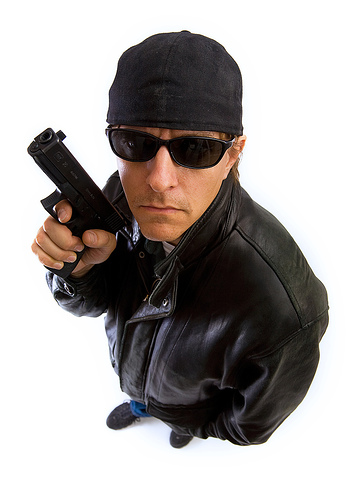
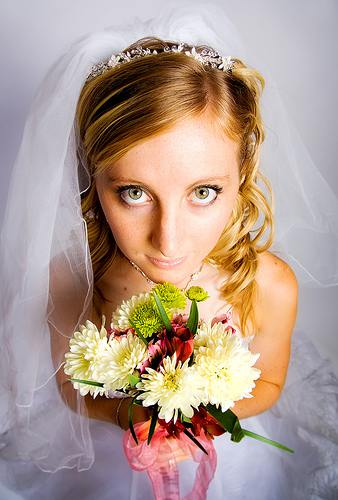
One of the fun poses I like to do when working with a model is a close-in wide angle shot taken from above the subject. The distortion created by a wide angle lens causes the subject's head to appear oversized with a small body filling the remainder of the frame. For further exaggeration of the face, I get as close to the model as possible while still maintaining focus. To be able to get over top the model, I keep a small ladder in the studio for this purpose.

On both the shot of the menacing looking gunman (above) and the little bride (below), I used my all-purpose 24-105 f/4L lens on a Canon 5D. Since the 5D has a full-frame sensor eliminating the crop-factor, I get a true 24mm in the widest focal length causing the large head effect to work nicely.


One of the lenses on my future-purchase list is the Canon 17-40 f/4L. This lens will give me even more versatility in creating this type of portrait.

Canon 5D, Canon 24-105 f/4L lens - 1/125 second, f/7.1, ISO 100

Labels: ,

Friday, December 28, 2007

A Camera, Kids and an Empty Bowling Alley


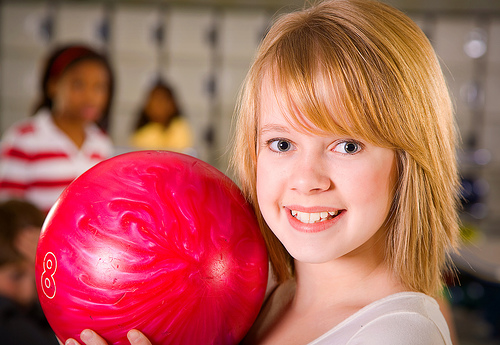
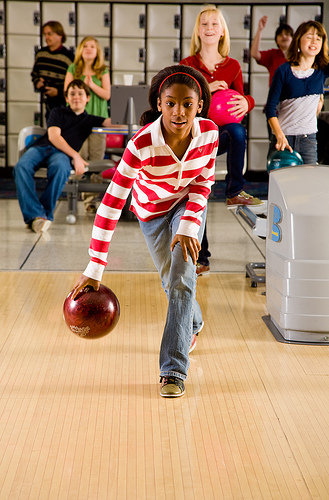
I spent the snowy Friday morning before Christmas at a local bowling center with a few kids doing a photo shoot for my iStockphoto portfolio. The kids had a great time getting to do some bowling while modeling. This shoot had been planned for quite a while since the date was a school holiday. What we didn't expect was for it to be the snowiest morning of the season. To my surprise, all of our models braved the weather and made it to the shoot on time.

Bowler

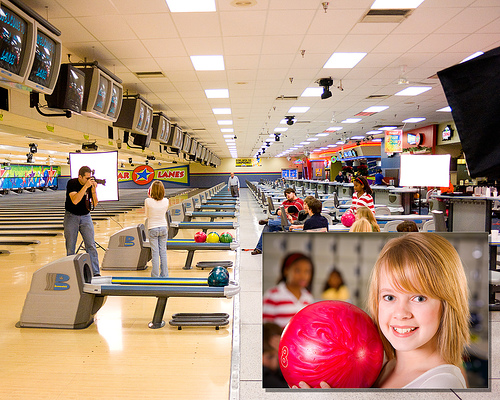
Most of the shots involved the kids hanging out in the bowler's seating area, although I did do a few shots of kids bowling (above). In this overview image below, you can get an idea of the lighting setup used. Three large softboxes and a 5x7' monolight lit diffusion screen created a sizable 'set' to shoot within.

Behind the Scenes - Bowling Alley

It was very cool to have a whole bowling alley to ourselves. Of course, the raging blizzard outside did help contribute to the emptiness of the location. Special thanks go to my friend Harley who supplied some equipment, assisted on the shoot, and took the overview shot.

Labels: ,

Thursday, December 13, 2007

Woodworking Shop Photo Shoot


This past weekend I did a stock photo shoot at my brother-in-law's custom furniture shot. During the weekdays the shop is a hotbed of activity, but on this particular Saturday afternoon it was nearly empty and a great time to put together a set of images for my portfolio.

The goal for the shoot was to capture a craftsman at work using the various tools and equipment in the shop. I wanted the shots to look realistic and not staged. Tyler, my brother-in-law, made a great model working the equipment as we made our way around the large shop.

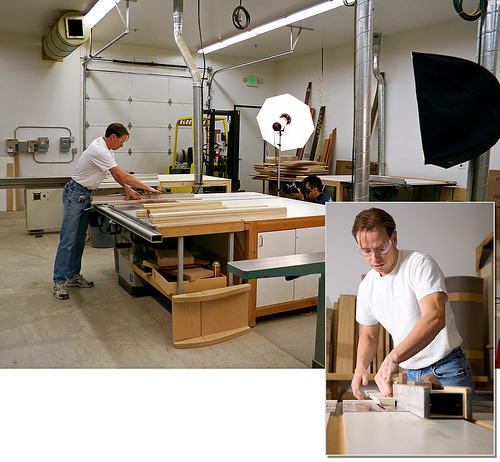
The lighting setup consisted of three lights. The main light was a 24x36" softbox while fill light was provided by a 36" umbrella. Both of these modifiers were mounted on 600 wattsecond monolights. I also used a single monolight for illuminating the background when necessary. A picture tells a better story, so here is an overview of one of the shots:

Behind the Scenes - Furniture Shop Photo Shoot
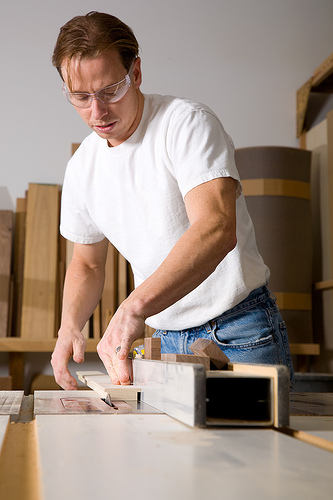
The main light was placed at a fairly sharp angle to give shadow and definition to the subject. The detail in Tyler's left arm in today's featured image is a good example of this result.

We were in an out of the shop in about 90 minutes and were able to produce 48 final images (from the nearly 200 shots taken) all of which were accepted into my iStock inventory. I generally love doing these location stock shoots and this one was no exception. The complete set from the shoot can be viewed here.

Canon 5D, Canon 24-105 f/4L lens - 1/125 second, f/9, ISO 100

Labels: ,

Saturday, December 08, 2007

Working Within a Color Family


It's a snowy Saturday morning here in Utah and my 9:00 am photo shoot just got postponed, so I thought I would spend a few minutes and break down a wintery image for today's post.

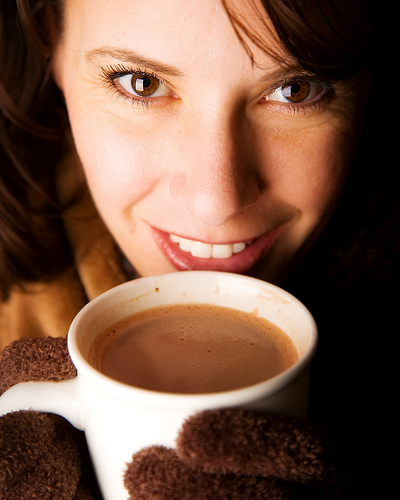
One thing that I have been working on improving in my photography is my use of color themes within a photo. When capturing this image (from a recent wintertime stock series), I concentrated on keeping the color tone similar in each element of the shot. With Michelle's strikingly dark eyes (yeah, I'm a bit biased) and wanting to create a warm result to go with the hot cup of chocolate, working with brown tones was a natural choice.

My first thought when putting together the composition was to use a dark brown cup for the cocoa. After a bit of thought I opted for white to have the cup provide a subtle similarity to the brown/white of her eyes. Secondly, Michelle's jacket was too dark in the original, so I had her wrap in a tan fleece that I happened to have in studio to give separation between her hair and jacket on the left.

One improvement that I wish I would have done is to move the cup a short distance to the right. I find the clipping of the cup's handle on the left a bit disconcerting.

As you can tell by the large catchlights in the eyes, the lighting setup was very simple. I used a 24x36" softbox positioned vertically to the left of camera. I purposely wanted to create the dark shadow area on the right, so the light was placed at a fairly sharp angle with no fill (light or reflector) on the opposite side. The 600ws light was turned to a minimum power setting to allow me to shoot at f/5 creating a narrow depth of field. To further narrow the depth of field, I shot with the lens at its most telephoto setting of 105mm (I stood on a stepladder to get enough distance).

Well, that's enough rambling for today. I'm now off to brave the Greatest Snow on Earth.

Canon 5D, Canon 24-105 f/4L lens - 1/125 second, f/5, ISO 100

Labels: , , ,

Thursday, December 06, 2007

(Junior) Executive Lighting


One of the many photography blogs I follow is that of Colorado photographer David Tejada. David specializes in annual report photography and has a blog that details many of his assignments. The great part about the blog is that he frequently posts video overviews of his shoots.

One of his recent videos was a time-lapse presentation of an assignment doing corporate headshots. In the video, he places a large softbox directly to the right side aiming across the front of of the subject and then fills the opposite side with a reflector. Here is the video: