Photoshop Tip: Blend a B&W Layer to add Edginess

5 Comments

Since the majority of my photo editing is for my stock portfolio, I tend to be rather vanilla with my editing. By that I mean that I keep my images pretty true to how they were shot. For uses outside of stock however, a friend of mine recently showed me a quick way to add edginess to an image by blending layers.

I will be the first person to tell you that I am no master of layer blending in Photoshop (I will defer that title to Ann Torrence, her knowledge on the subject is amazing!), but I really like the look that this effect creates.

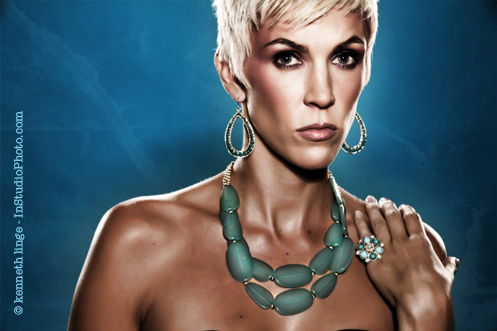
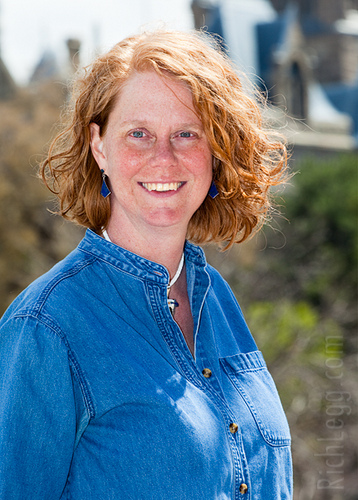
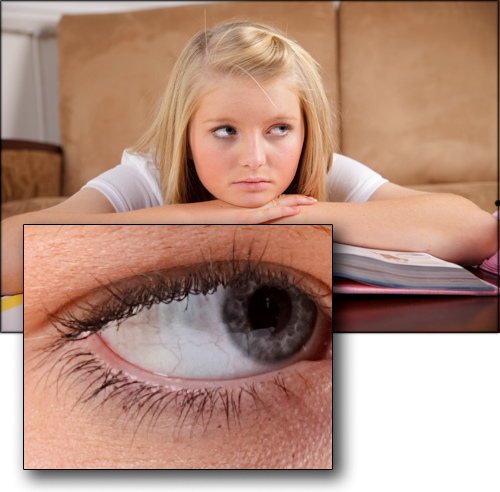
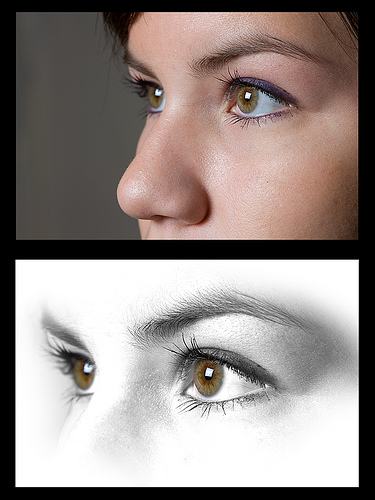
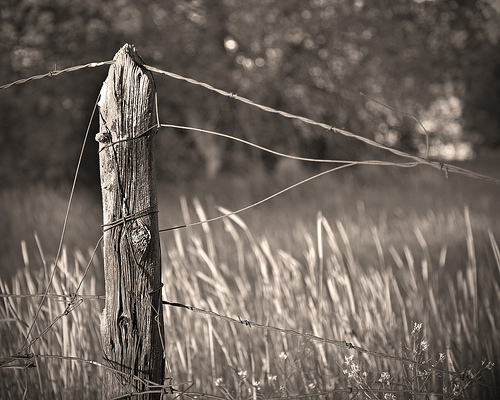
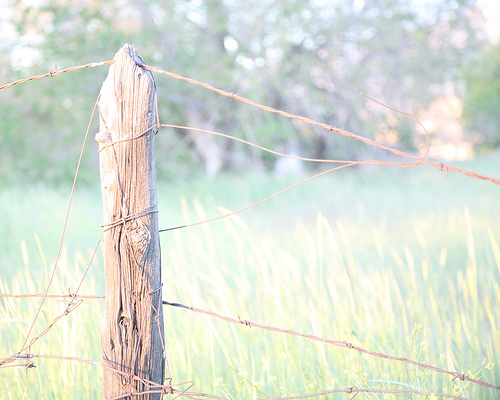
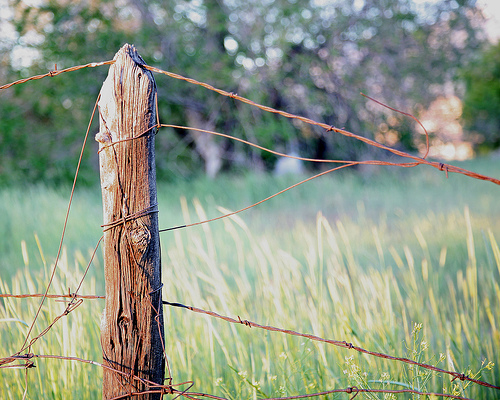
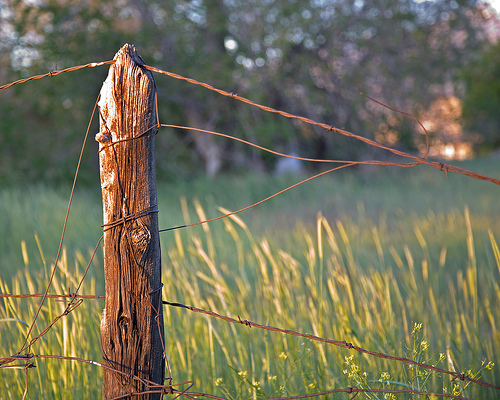
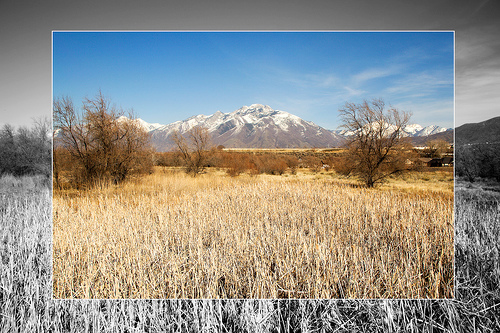
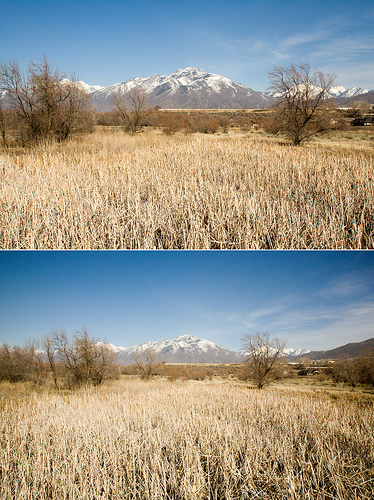
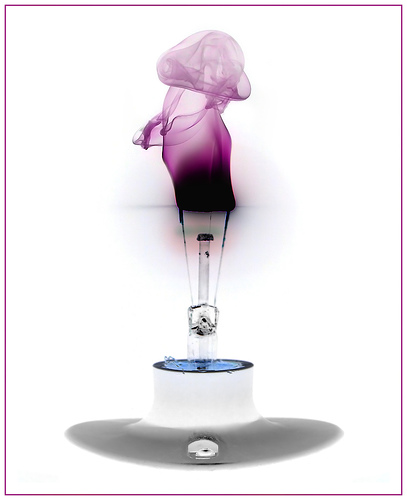
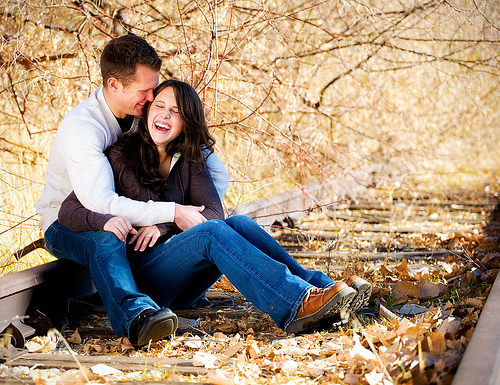
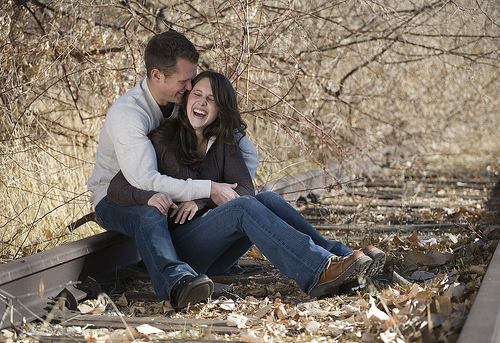
In today’s before/after image, I opened one of my shots from last weekend in Photoshop. The sample on the left is unedited other than the RAW conversion. On the other image (right side), I only added this simple process in Photoshop:

1. Create a copy of the original layer above itself
2. Desaturate the new layer (apple-shift-U on a Mac)
3. Set the blending of the new layer to ‘Overlay’

If you want to further tweak the settings, try different blending modes (soft light, hard light, etc.) and play around with opacity.

And that’s it. A quick and fairly easy way to add a more dramatic look to an image.

Canon 5D, Canon 24-105 f/4L lens – 1/50 second, f/4, ISO 100

November 25, 2008 at 8:35 am by | Categories: tutorial

Quick Tip: An ID Tag for Your Camera

9 Comments

Here’s a quick and easy tip that could pay for itself a thousand times over.

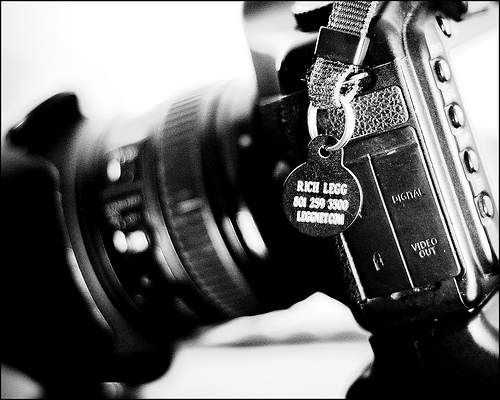
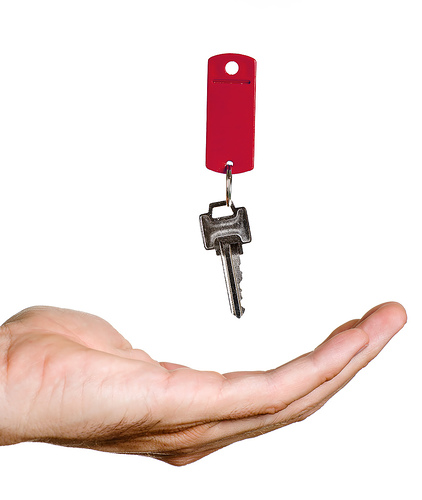
While at a recent Photwalking Utah event, I noticed that photographer Ann Torrence had a small ID tag attached to her camera. When I asked her about it, she told me that it was a tag designed to put the owner information on pet collars in case the animal is lost. I immediately thought “What a great idea!”.

I made a trip to my local PETCO store and used their machine to have a tag made for each of my cameras. I opted for the smallest version (about the size of a penny) and it is completely out of the way on the camera body. The total cost to label my gear: $12.

Now, let’s just hope that if my camera is ever lost that the person who finds it is honest (fingers crossed).

October 22, 2008 at 11:32 am by | Categories: tutorial

Create Friendly Backgrounds with a Wide Aperture

3 Comments

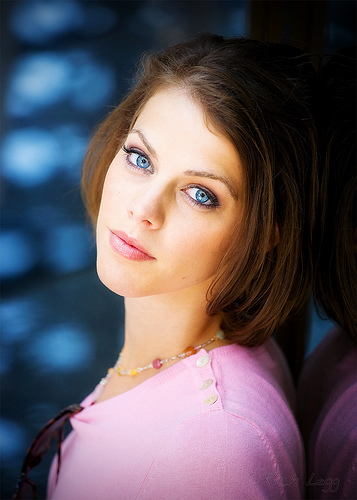
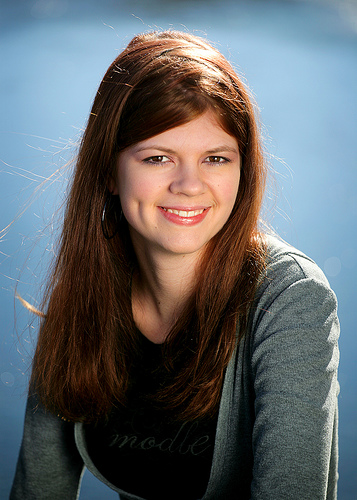
One of the easiest tips I give beginning photographers that are looking to improve the look of their portrait shots is to shoot at the widest possible aperture. This means the lowest f/ number on the lens. In doing so, what could be a boring or distracting background translates into a nice smooth surface helping to accentuate the subject.

For today’s example image, I photographed Brenda on the streets of Seattle during last weekend’s shoot. I spotted a surface with a great blue reflection that would help enhance Brenda’s eyes. By shooting wide open (f/4 in this case), I was able to smooth the harsh circles in the background into an interesting design. Using a long focal length lens helped to further add to the effect.

When shooting outdoors using reflector lighting (like in today’s image), I set my camera on AV (Aperture Value) Auto mode and leave the lens aperture wide open. Doing this lets the camera determine the appropriate shutter speed and frees me up to concentrate on composition.

Canon 5D, Canon 70-200 f/4L lens – 1/100 second, f/4, ISO 200

August 14, 2008 at 9:08 am by | Categories: tutorial

Creating a photo with a pure white background

5 Comments

Love it or hate it, a popular style of shooting in stock photography is the photographing of models or objects against a pure white background. By pure white I mean a background with absolutely NO detail, RBG values of 255,255,255 – Nothing!

There are an abundance of ways to create this look from simply cutting out the subject in Photoshop to doing it entirely ‘in camera’. I prefer to go for the latter method.

For today’s featured image of Michelle holding a weight, I relied on a studio setup to create the majority of the ‘pure white background’ in camera and then finished off the look in post-processing. To setup the shot, I placed two monolights shooting through white umbrellas onto the background of white seamless paper.

Picture 8

I set the monolights so that the exposure on the background was in the range between f/11 and f/16. For me, using lights of different power it took a small bit of adjustment to get it right.

The next step was to place Michelle in front of the white background at a distance that would give a nice rimlight from the background reflection but not overpower her. Since this photo was for a stock purpose I allowed the light to reflect a bit aggressively onto the left side of her face. Had this been for a portrait, I would have adjusted differently to eliminate this.

I lit Michelle with a combination of a large softbox and a reflector. The exposure metering for her was f/8. This is what I set my camera on. By doing so, I had a background that was sufficiently over-exposed but not so much that it caused excessive blow-back which can lead to problems like lens flare, blown edges and such.

In post-processing, I shoot RAW so the first step is to convert the RAW file in AdobeCameraRaw (ACR). My default setting in ACR is to show pure white highlights as red and pure black lowlights as blue. As can be seen in the screenshot, my shot came close to having a pure white background with very little adjustment.

Picture 4

Now, with the majority of the work done, I open the image to complete editing in Photoshop. I know from what I saw in ACR that I will have a few areas to clean up to guarantee a pure white background.

After opening the image in Photoshop, the first thing I do is create a temporary Brightness/Contrast adjustment layer and pull the brightness slider all the way to the left. What this does is show me the areas that I have to finish cleaning up to get the desired white background. Any area that is not absolute white (255,255,255) will be immediately apparent.

Picture 6

To clean up these areas, I will use one of a couple methods. If it is an easy spot in a corner or two, I will simply create a new layer and paint the area(s) white. If it requires a bit more finesse because it’s around the model (like this image), I will use a levels adjustment layer along with some vector masking. Once I get the background how I want it, I then delete the temporary Brightness/Contrast adjustment layer that I created.

After creating my white background, I then go on to complete my processing including other steps like facial retouching, whitening eyes and teeth, sharpening, etc.

As you can see by this example, the easiest way to create the background and my preferred method is to do as much as possible in camera. In doing so, the Photoshop work required for a series of images is minimized and this dramatically drops the time needed sitting in front of the Mac.

Canon 5D, Canon 24-105 f/4L lens – 1/160 second, f/8, ISO 100

August 1, 2008 at 3:56 pm by | Categories: tutorial

Photographing for stock with the end user in mind

4 Comments

When I plan a stock photo shoot, I always think about how designers/advertisers/editors can use the images I create in their work. Chances are, if I can’t think of multiple uses for an image then it won’t end up selling very well. This is sometimes hard to come to grips with. Early on in my stock shooting, I had some pretty artsy shots that I really liked and thought would be big sellers. To my surprise and disappointment, many of these images ended up not selling at all.

Today’s image is an example of shooting with the end use in mind. Since the passing and implementation of California’s new cellphone usage law on July 1st (link), I figured that there would be a need for fresh images portraying cellphone use while driving. With this in mind, I took one of my models to an empty parking lot earlier this month and photographed several scenes of her using a cellphone while driving.

In this case it worked. This morning I awoke to find one of my preset Google Alerts had located multiple uses of my image of a driver texting. The Christian Science Monitor provides content for television station websites throughout the country and for their story on texting-while-driving they purchased this image from my iStockphoto portfolio.

As John “Hannibal” Smith said, “I love it when a plan comes together”.

July 24, 2008 at 6:34 am by | Categories: tutorial

Cross Lighting In Studio

5 Comments

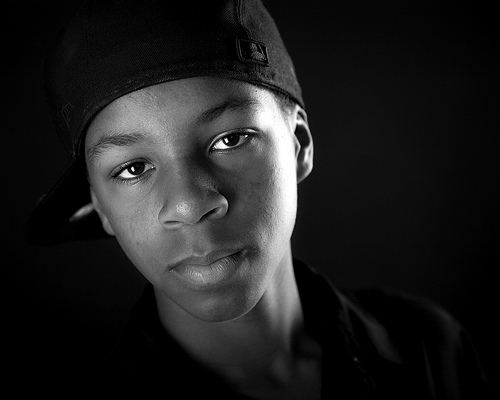
I spent some time yesterday with a couple young men in the studio. My goal going in was to shoot them with serious expressions against a dark background.

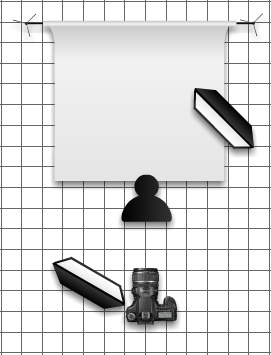
In today’s image of Ryan taken during the session, I used a cross lighting type setup (diagram below). The arrangement consisted of a of a softbox camera left lighting the model’s right side and a second softbox on the opposite side of the model lighting his back and left side.

Picture 6

I like the results achieved. If I were to do the shoot again, I would lower the power on the back light a small amount. Even though the detail was retained on the side of Ryan’s face in the original image, I lost detail and blew out the highlights a bit in processing.
Canon 5D, Canon 24-105 f/4L lens – 1/160 second, f/4.5, ISO 100

July 21, 2008 at 8:30 am by | Categories: tutorial

Stock Photos: Part of a Bigger Picture

4 Comments

One hurdle that photographers often encounter when selling stock photos is that (in many cases) their image will become part of a bigger project. Unlike portrait and fine-art photography where the photographer creates a final product, stock photos are frequently incorporated into a larger design.

One change I had to make to my workflow was to minimize the post-processing I did on images that would be included in my stock portfolios. Initially this was difficult, since I felt the images needed a bit more punch. I am now comfortable with the process and always think about the “bigger design picture” when processing my stock images.

Todays image is a perfect example of this. Designer John Kicksee uses stock images in his designs of book covers. For the cover of Aces High, John incorporated my image of a crime scene victim into the design.

Doorway Victim

When looking at the original image, you can see the vast amount of changes he made to it for inclusion into the final piece. In addition to a crop and horizontal flip, John took a lot of effort to transform the photo into pseudo-artwork. The final product is incredibly better than it would have been if he had used my photo un-edited.
This is just one more thing to consider when shooting, editing and ultimately selling stock photos.

June 27, 2008 at 10:02 am by | Categories: tutorial

Brittanie in Black & White

4 Comments

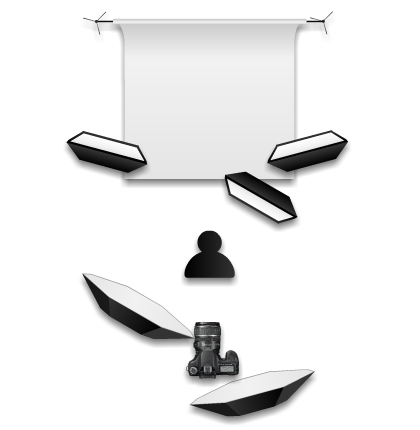
During last week’s stock photo shoot with Brittanie I took a small detour and captured a few portraits for non-stock use. This is one of the images. In this shot, I wanted to shoot her in a non-classical type of pose. The goal was to have everything but her skin blend into the background. Here is a diagram of the two-light setup used.
Brittanie B&W Setup

What this diagram doesn’t show is the large gobo between the key light (on the right) and the background used to eliminate light spill. Additionally, I placed a 3×4′ piece of black acrylic in front of Brittanie to use as a table and to add a subtle reflection to the bottom of the shot.

I’m pleased with the result, especially the lighting on her face which converted very nicely into black & white. If I were to shoot this again, I would use one additional light as a low-power hairlight to add a slight bit of separation between her shoulders and the background.

Canon 5D, Canon 24-105 f/4L lens – 1/125 second, f/4.5, ISO 100

June 17, 2008 at 7:37 am by | Categories: tutorial

Using a Slow Shutter Speed for Effect

1 Comment

Back when I first began using an SLR camera, one of the first rules that I learned was to maintain a fast enough shutter speed to eliminate blur when shooting handheld. The formula that my high school photography teacher (Mr. Cresop, I wonder where he is now) taught was to use the lens focal length to determine the shutter speed (for example, for a 50mm lens the minimum shutter speed would be 1/50 second). This advice is still good to use today. Even with things like image stabilization, a fast shutter speed equates a sharper image.

On occasion though, a longer shutter speed can add an interesting blur to the image. In today’s image, my friend Kenneth Linge borrowed my camera to demonstrate this recently in downtown Salt Lake City. He had the model stand very still while photographing her as a couple guys walked past. The relatively long shutter speed of 1/10 second gave a nice motion blur to the onlookers. By bracing himself on a lamp pole, he was able to minimize the camera movement and keep the model acceptably sharp.

This is another example of when breaking the “rules” of photography can work in the photographer’s favor.

Canon 5D, Canon 24-105 f/4L lens – 1/10 second, f/25, ISO 160

June 4, 2008 at 3:24 pm by | Categories: tutorial

Traveling Light: My 2 Speedlight Portrait Setup

4 Comments

I have recently added a second speedlight to my out-of-the-studio kit with the plan of being able to travel a bit lighter and more efficient. In the past I would bring along a monoilght for off-camera lighting at events, but now the second speedlight negates that need.

Today’s portrait of Pastor Steve at last weekend’s wedding shoot was captured with this two-speedlight setup. I had a Canon 580EXII on my camera with a 430EX on a lightstand with an umbrella to the right. The two strobes communicated with each other via IR. I set the on-camera strobe at -2/3 f/stop to serve as a fill light and set the off-camera strobe at +1/3 f/stop to be my main light. I then put my camera on manual with an exposure of 1/60 second at f/5.6. The TTL (through-the-lens) function of the speedlights managed their power output.

As you can see from the image, this setup worked well. The biggest advantage over using a monolight was that I didn’t have to re-meter anytime I moved the off-camera light. The TTL adjusted the power output to my exposure. I could move the off-camera light back for larger groups and in for individuals without worrying about exposure changes. And, unlike my monolights, I was able to operate cord-free since the lights are battery powered.

Even though this setup works well, I think that in the future I will add one more Speedlight to add even more versatility.

Canon 5D, Canon 24-105 f/4L lens – 1/60 second, f/5.6, ISO 100

June 2, 2008 at 12:30 pm by | Categories: tutorial